If you are a computer science student or someone who enjoys working on a VPS, chances are you are using Terminal 90% of the time.
Unless you are working on UI using a terminal, mastering some terminal commands brings about some benefits.
Maybe it’s just me. But ever since being comfortable with terminal commands, I realized that I had slowly shifted away from UI.
Or maybe I get the feeling of being an l33t hacker getting simple operations done using the terminal.
While working on VPS, there was always a problem of wanting to run a script on it without maintaining an SSH connection.
In addition, terminals that are full screen usually utilize only half the screen and it is a waste of space.
In this tutorial, you will learn how to keep the script running without maintaining a connection as well as maximizing your terminal to its fullest potential.
This tmux tutorial includes
- Creating a session
- Detaching a session
- Creating a new window
- Switching windows
- Navigating between windows
- Splitting panes
- Navigating between panes
To install tmux type the following:
sudo apt-get install tmux
How Tmux Works
First, let’s first understand how tmux works.
When you execute a tmux command, a tmux server is launched.
Every activity that is launched in the tmux window happens within the server.
Commands or scripts ran within this server continue even after the SSH daemon has closed.
There are three terms while using tmux.
- Session
- Window
- Panes
A session is a single collection of pseudo terminals under the management of tmux.
Each session has one or more windows linked to it.
A window occupies the entire screen and may be split into rectangular panes, in which each pane is a separate pseudo terminal.
Quoted from: http://www.openbsd.org/cgi-bin/man.cgi/OpenBSD-current/man1/tmux.1?query=tmux&sec=1
Tmux Usage
This is optional but you can first ssh into a VPS to experience the full potential of this tool.
I recommend RamNode(aff link) and it is the VPS provider I use when working on small projects.
Session
To create a new Session, issue the following command:
tmux new -s session1
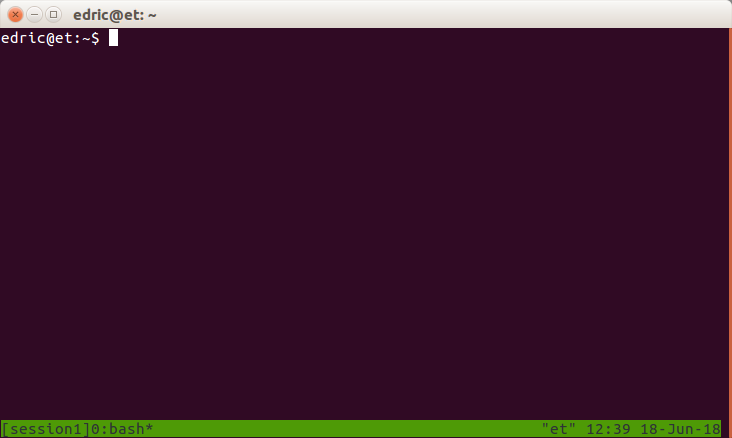
To detach a session, type the following:
(Ctrl + b) + d
Note: Type “Ctrl+b” followed by the ”d” key separately

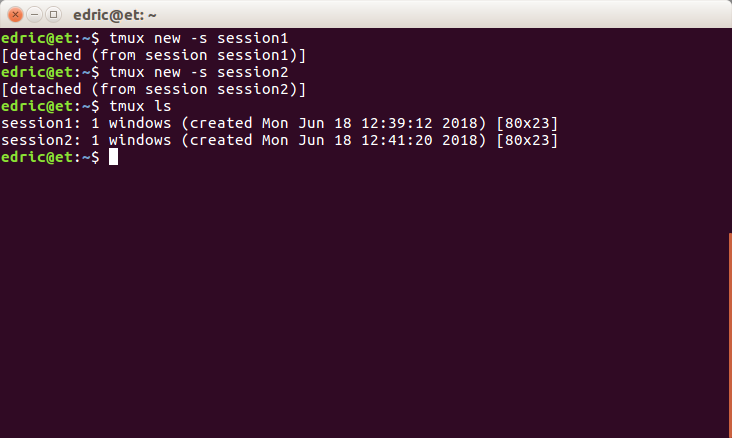
Now I will create another session called session2:
tmux new -s session2
And detach the session (Ctrl + b) + d to return to the main terminal.
You can list all the sessions by issuing the command:
tmux ls
To enter a session that was previously created, type:
tmux attach -t
In this tutorial, we will be attaching to session 1. Therefore, the command will be:
Window
Now we will move on to the concept of Window.
Type (Ctrl + b) + c to create a new window.
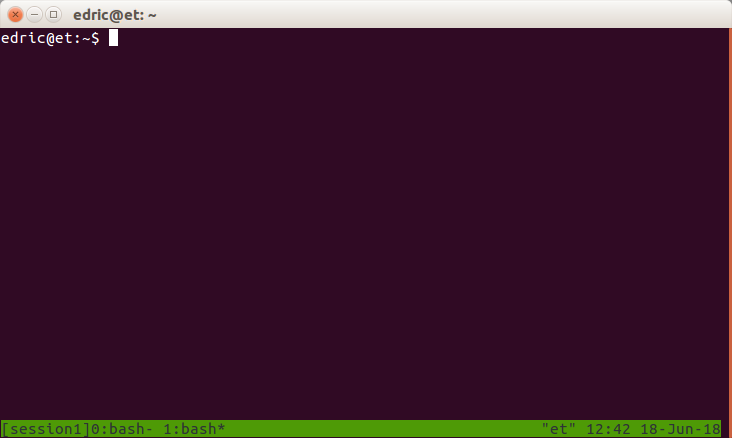
To switch between the windows, enter the following:
(Ctrl + b) + n (Next window)
(Ctrl + b) + p (Previous window)
Note: The asterisk* is an indicator of the current window
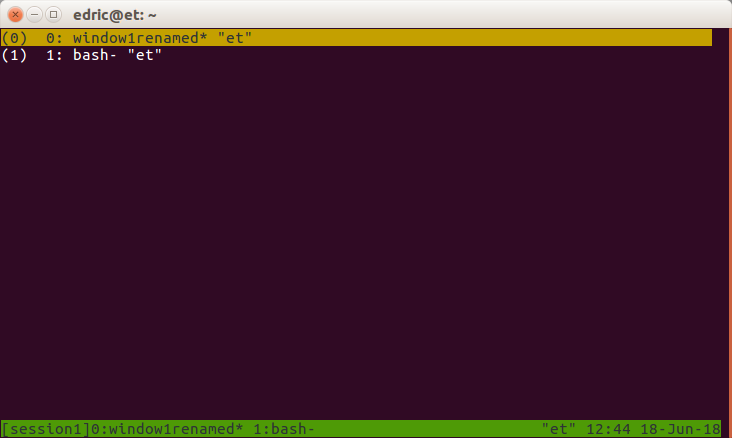
Now I will switch to the first window using (Ctrl + b) + p and rename it using (Ctrl + b) + ,

If you have a lot of windows, you could type (Ctrl + b) + w to list all windows and select using the Enter key.
To delete the current window, type:
(Ctrl + b) + &
Pane
Now let’s move on to the concept of Panes.
Panes are windows that are divided into multiple parts.
In a window, you can split the current in half horizontally or vertically by issuing:
(Ctrl + b) + “ (horizontally)
(Ctrl + b) + % (vertically)
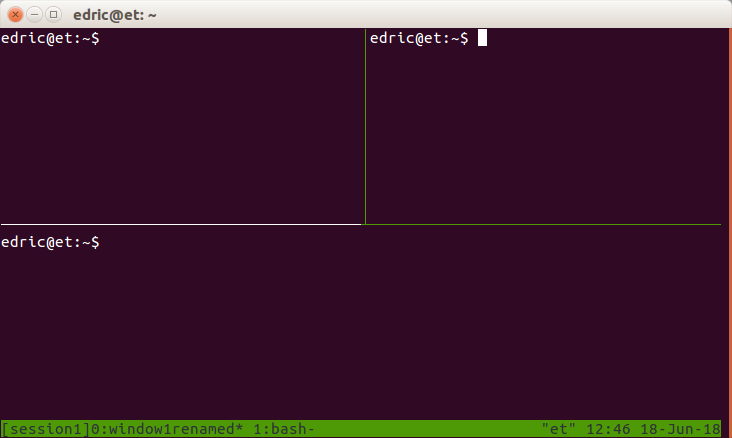
I will now split the window horizontally using (Ctrl + b) + “ (horizontally).

Now I want to split the top half vertically.
However, the focus is on the 2nd pane.
Change the pane by typing (Ctrl + b) + o (Rotate clockwise) to change the selected pane.
Next split the first pane further vertically by issuing (Ctrl + b) + %
Concluding
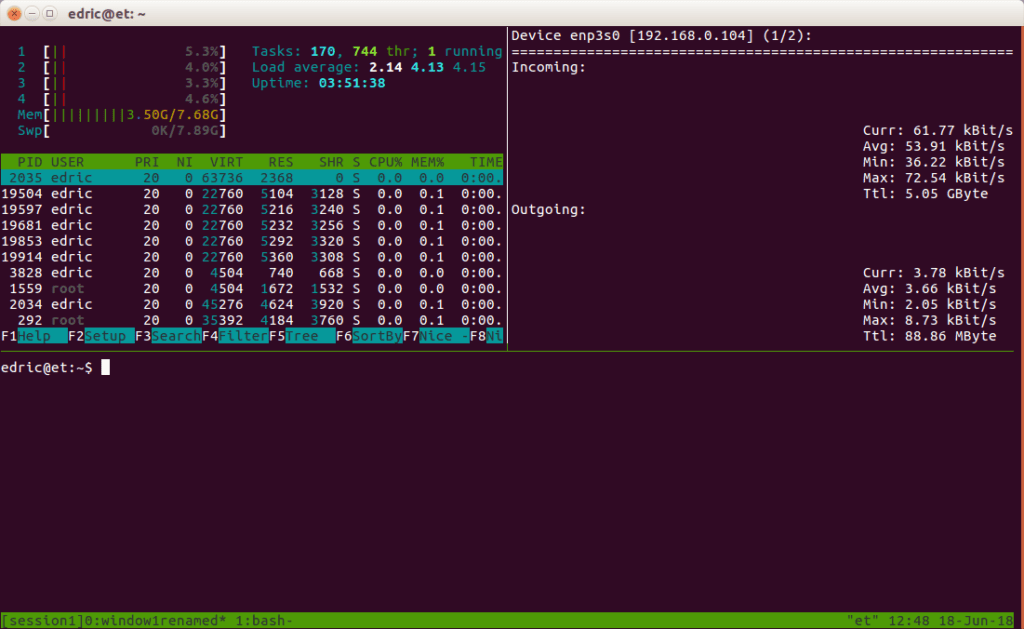
There are plenty of use cases but one of the most important aspects is that this tool gives me the ability to continue running a script after closing my SSH connection.
A sysadmin could monitor different things at the same time without switching terminals all the time.
And since this can be done over ssh, it means the sysadmin could access this live data anytime.
Tmux Cheat Sheet
| Category |
Action |
Command |
| Session |
Rename a session |
tmux rename-session -t old-name new-name |
| Session |
Attach to a specific session |
tmux attach -t session-name |
| Session |
Kill a specific session |
tmux kill-session -t session-name |
| Window |
Rename current window |
(Ctrl + b) + , |
| Pane |
Move between panes |
(Ctrl + b) + arrow keys |
| Pane |
Resize panes |
(Ctrl + b) + (Ctrl + arrow keys) |
| Pane |
Zoom in/out of a pane |
(Ctrl + b) + z |
| Copy Mode |
Enter copy mode |
(Ctrl + b) + [ |
| Copy Mode |
Search in copy mode |
/ (forward search) or ? (backward search) |
| Misc |
Display clock |
(Ctrl + b) + t |
| Misc |
List all key bindings |
(Ctrl + b) + ? |